
How to make your
Fergie Baby AI video
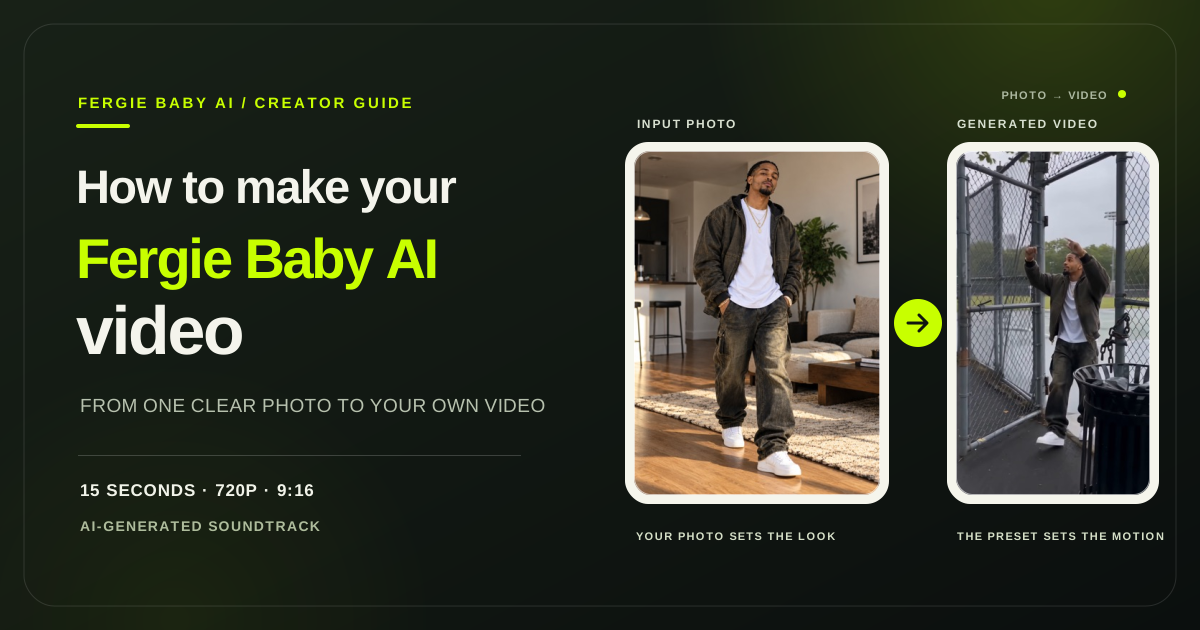
Make a 15-second vertical video from one photo. Here’s how to choose an image, submit it with the preset motion reference, and find your finished MP4.
1. Choose a clear photo of one adult
Use a sharp, well-lit JPG, PNG, or WebP image under 10 MB. Keep the face and outfit easy to see. A solo full-body photo works best because it gives the video more detail about the person’s clothing and pose; avoid group photos, sunglasses, or anything covering the face.
Upload your own photo or one you have permission to use. The generator asks you to confirm that permission before you submit.
See photo-to-video examples
Each video below is paired with the photo used to make it. The examples show the shared entrance sequence; likeness, clothing details, and movement can vary from one result to another.
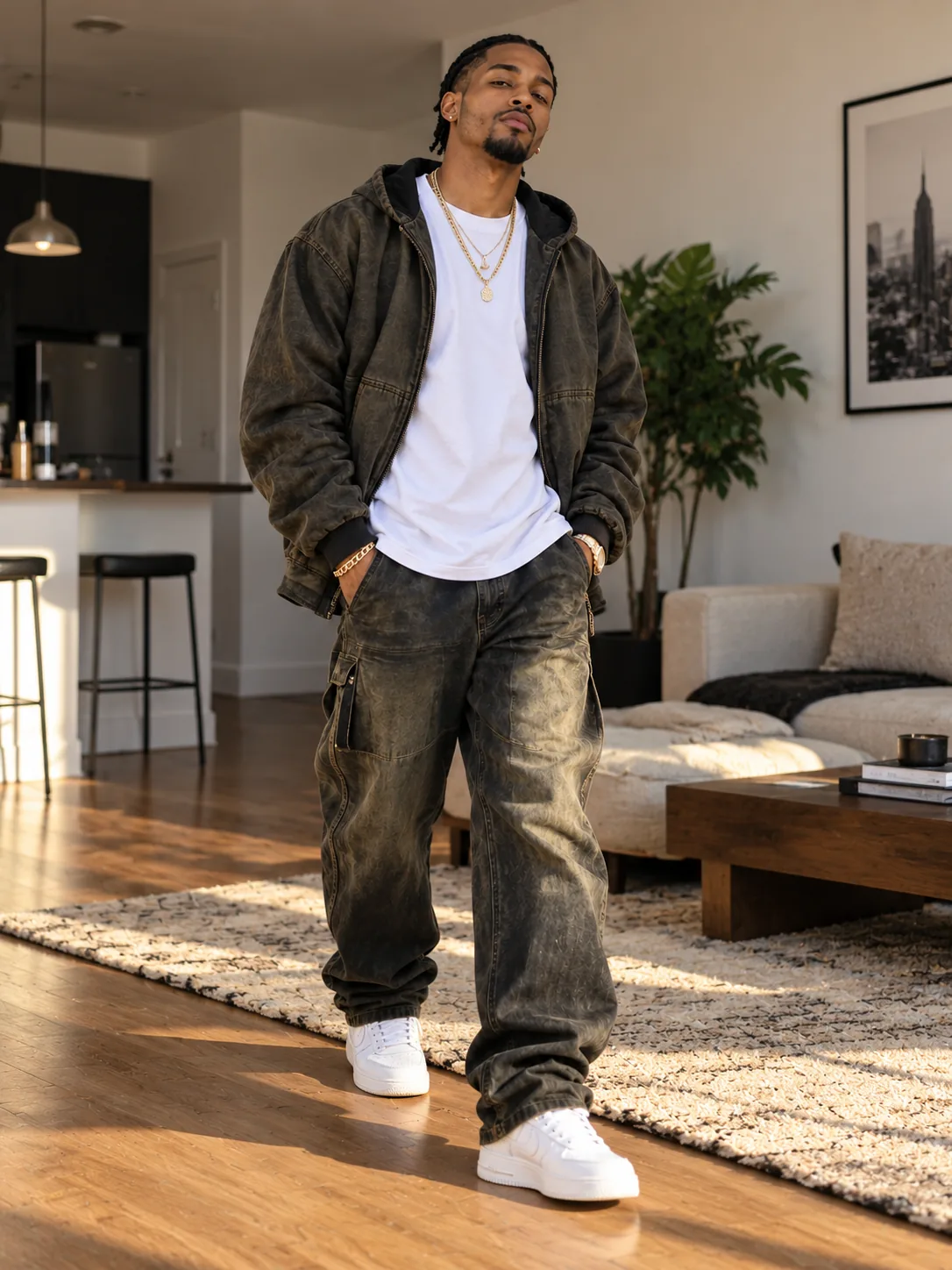
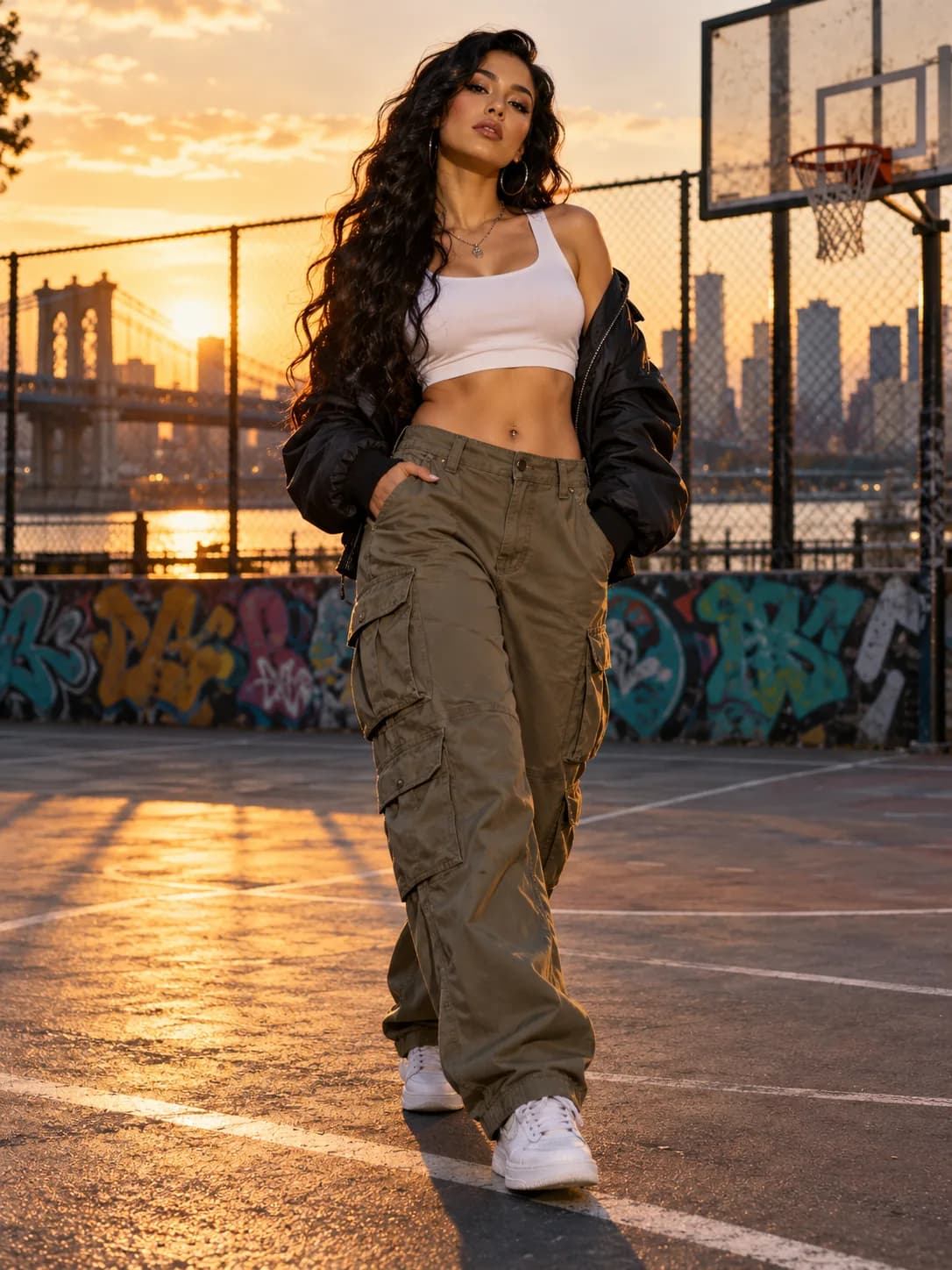
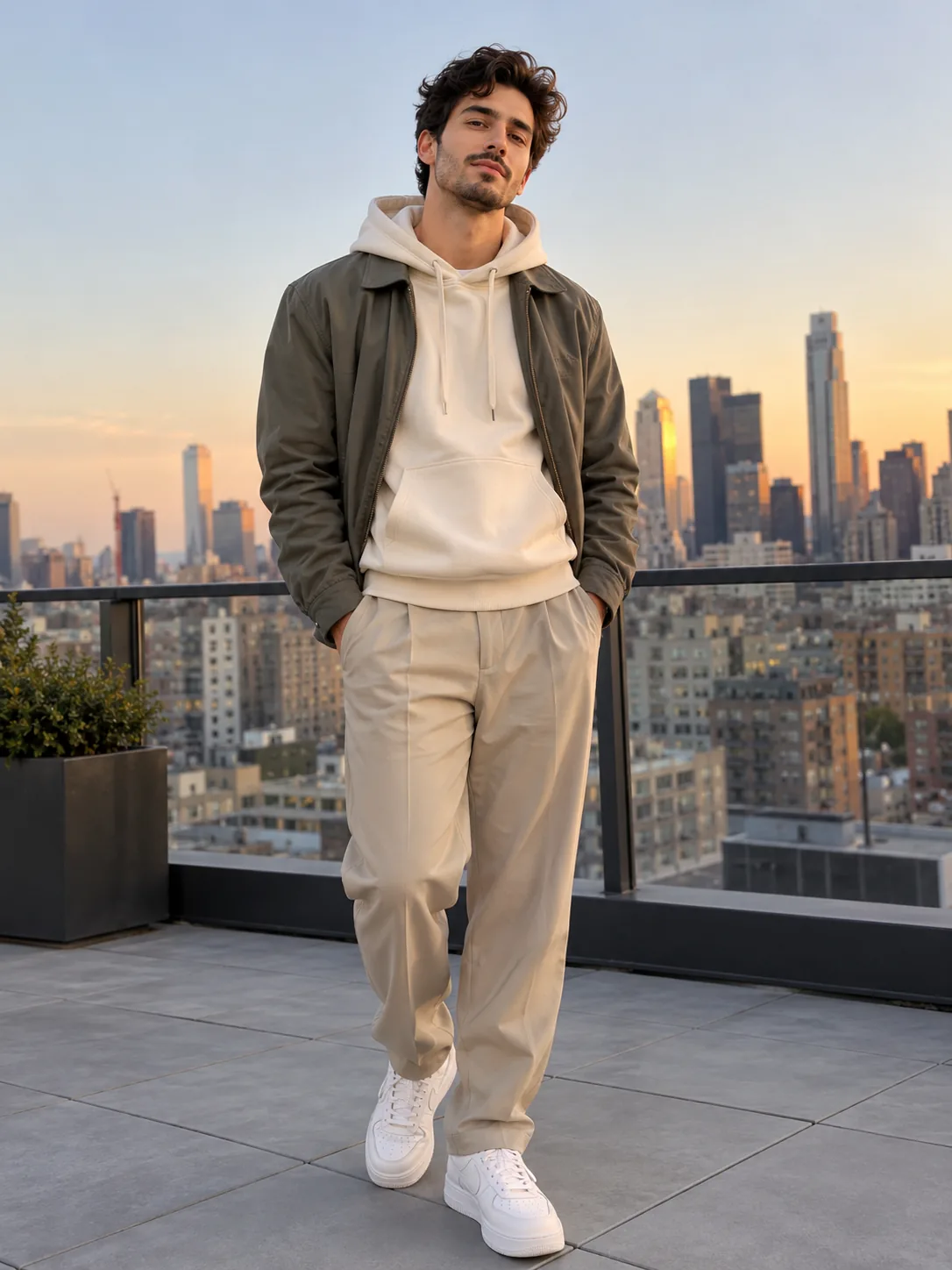
The motion reference on the home page shows the preset movement. It is a reference clip, not a personalized result.
2. Upload your photo
Open the Fergie Baby AI generator and choose or drop in your image. Check the preview, confirm you may use the photo, then continue. The selected photo is saved in this browser for sign-in when browser storage is available. If the page asks you to keep it open, leave the tab open while you sign in.
3. Sign in and check the credit cost
Sign in or create an account to start. One video currently uses 50 credits. Credit packs are one-time purchases with no subscription. The home page shows the current pack prices and checkout status. When checkout is open, choose a pack to continue to payment; if it says “Preview pricing,” checkout is closed and no payment has been taken.
Follow the availability shown by the generator and pricing section. When generation is closed, you cannot submit a task and no credits are reserved.
4. Generate your video
The service uses your photo for the person and outfit, then applies its preset motion reference for the entrance and gestures. It requests an AI-generated soundtrack and returns a 15-second, 720p, 9:16 MP4. There is one fixed setup in this version, so you do not need to choose a model or upload a motion clip.
After submitting, follow the task on the page or in My Videos. You can leave the page while it processes. If the task says “Checking your submission,” wait for that existing task to be reconciled before trying again.
5. Download and review the finished MP4
When the task is complete and the video is saved, preview it in My Videos and choose Download MP4. Check the face, hands, outfit, movement, and soundtrack before you share it. AI results can vary, so a different photo may produce a different result.
Completed videos are available for 7 days. Download a copy during that window. The source photo and intermediate files are scheduled for deletion within 24 hours after a task completes or fails.
